
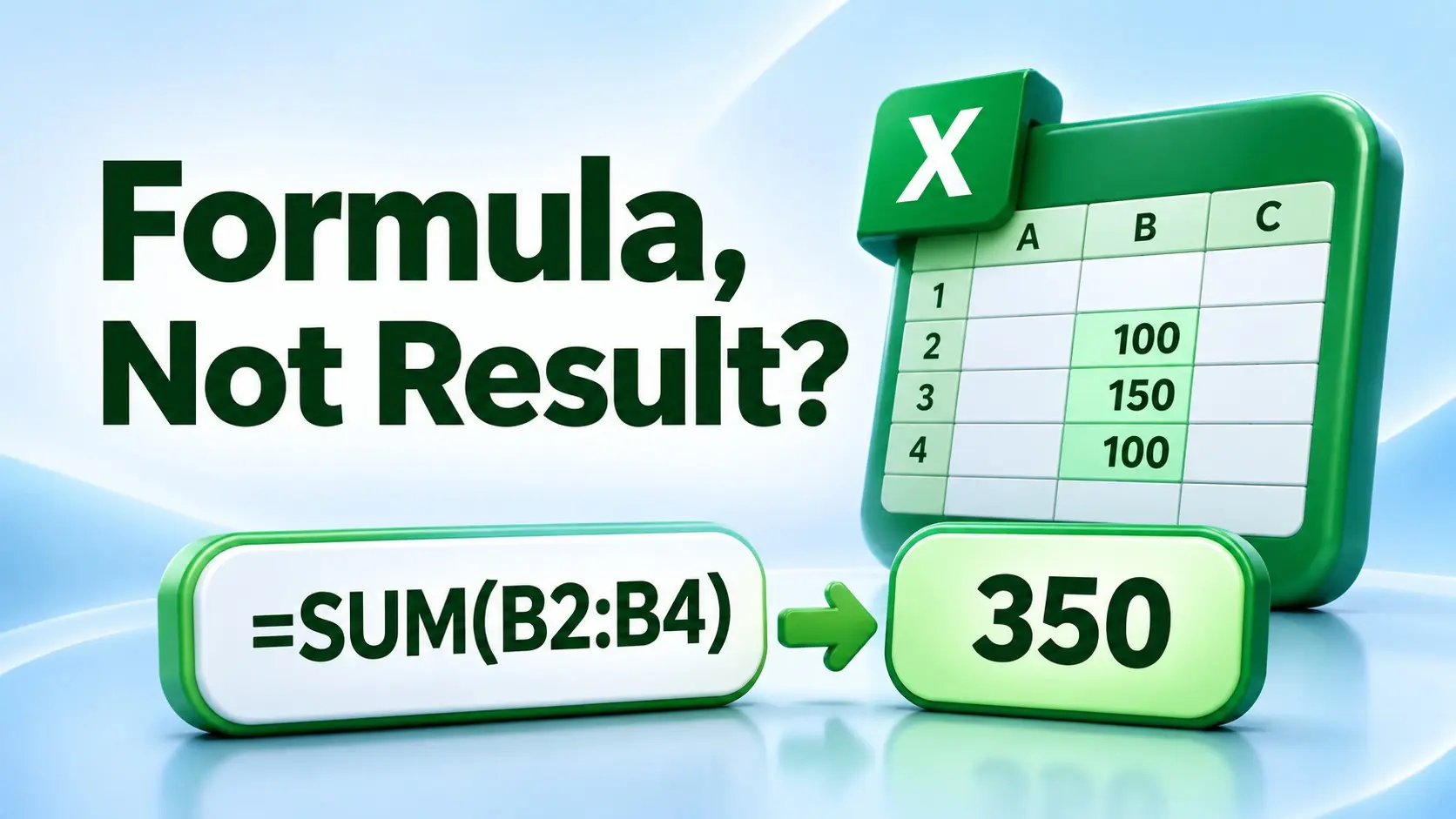


Aloha! You type =SUM(B2:B4), press Enter, and Excel shows =SUM(B2:B4) in the cell instead of 350. Before you rewrite the formula, check how many cells are affected. If formulas are showing throughout the sheet, turn off Show Formulas. If only one or a few cells are affected, check whether Excel stored those entries as text.
1. Formulas showing across the sheet? Turn off Show Formulas
In Excel for Windows, open the Formulas tab. In Formula Auditing, select Show Formulas if it’s on. The worksheet should display the results again. You haven’t changed any formulas. It’s normal for the formula bar to still show the formula when you select the cell.

1. Find Show Formulas on the Formulas tab.
2. One cell showing a formula? Check its format
Select the cell. On the Home tab, change the Number Format from Text to General. Then press F2, followed by Enter, to make Excel read the entry again. Changing the format alone doesn’t recalculate a formula that Excel already stored as text.


2. Change Text to General. Then press F2 and Enter.
3. Still showing text? Look just before the equals sign
Select the cell and check the formula bar. If you see an apostrophe before the equals sign, delete the apostrophe. If there’s a stray space at the start, remove it too. Make sure the first character is =. If the cell was formatted as Text, switch it to General before re-entering it.

3. Look for the leading apostrophe in the formula bar.
Try it with three invoice amounts
Enter 100, 150 and 100 in B2:B4. In B5, enter =SUM(B2:B4). You should get 350. Now change B4 from 100 to 120. The result should update to 370. That second check shows the cell is calculating, not just displaying a number somebody typed.
Before: B4 = 100, B5 = 350
After: B4 = 120, B5 = 370
Expected practice results (illustration, not a screenshot).
Want to get more comfortable with formulas in real workbooks? On my LearnFormula profile, look for Excel Tables: Manage and Analyze Data Like a Pro. The Using Structured References section shows how to build formulas using table and column names. This course is one CPD hour. Check the course’s credit details against your professional development requirements. See details.